
Why Your Smart Bulbs Keep Disconnecting - and How to Fix It

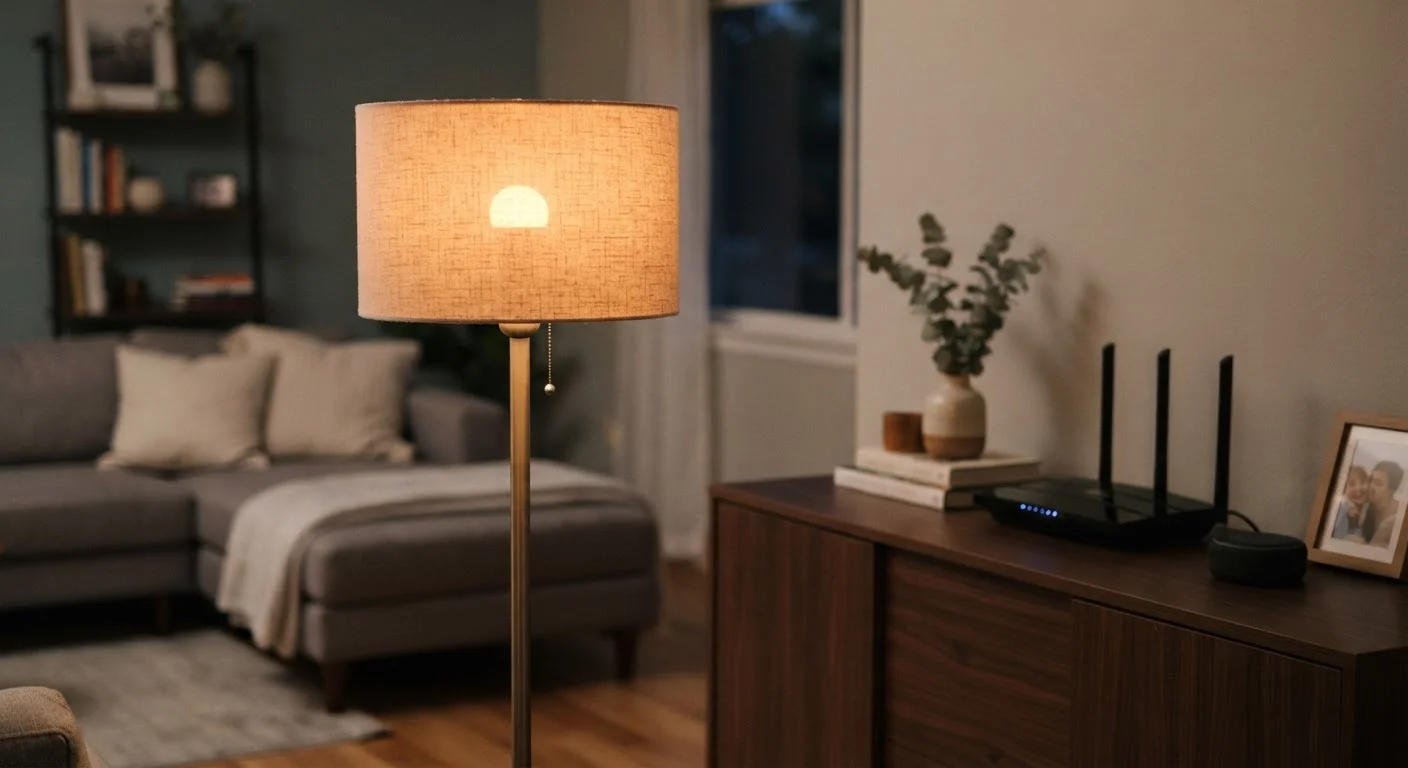
Photo: InfoAlly.net | Finding Info Made Easy editorial
Key Takeaways
- Most smart bulb dropouts are caused by Wi-Fi signal issues, not a defective bulb.
- Router placement, network band selection, and hub overload are the most common culprits.
- Simple changes like assigning a fixed IP address or switching to 2.4 GHz often resolve the problem.
- Regularly updating firmware on both bulbs and your router prevents many recurring issues.
The Real Reason Smart Bulbs Keep Going Offline
When a smart bulb stops responding, the instinct is to blame the bulb itself. In practice, the bulb is rarely the problem. Smart bulbs depend entirely on a stable wireless connection to your home network - and that connection is far more fragile than most people realize.
Smart bulbs typically communicate over Wi-Fi or a dedicated protocol like Zigbee or Z-Wave (radio standards designed specifically for smart home devices). When any link in that chain wobbles - your router, your internet service, your hub, or even a neighboring device - the bulb drops off and stops responding to commands.
Understanding that the bulb is just one node in a bigger system is the first step to fixing it. For a broader look at why smart home devices lose their connections in general, see why your smart home keeps dropping connections.
Placing the router too far from the smart bulbs.
Connecting smart bulbs to the 5 GHz Wi-Fi band instead of 2.4 GHz.
Overloading a single smart hub or bridge with too many devices.
Allowing the router to reassign the bulb's IP address after a reboot.
Skipping firmware updates on bulbs and the router.
Steps to Stabilize Your Smart Bulbs for Good
Once you understand the mistakes causing instability, the fixes are usually straightforward and don't require any technical background.
2.4 GHz
Preferred Wi-Fi band for smart home devices
The 2.4 GHz band penetrates walls more effectively than 5 GHz, making it more reliable for devices spread across a home.
~30 ft
Typical Zigbee signal range indoors
Zigbee and similar protocols have limited range indoors; walls and interference can cut effective distance significantly.
Check signal strength at the bulb's location
Use your phone's Wi-Fi indicator while standing directly under the fixture. If you're seeing two bars or fewer, your router signal is too weak at that spot. Consider moving your router closer, or adding a Wi-Fi extender (a device that rebroadcasts your network signal into areas it doesn't reach well).
Reserve a fixed IP address for each bulb
Log into your router's admin panel - usually by typing 192.168.1.1 or 192.168.0.1 into a browser - and look for a section called DHCP reservations or static IP. Assigning each bulb a permanent address prevents the router from reassigning it and breaking the connection.
Keep firmware current
Open the app you use to control your bulbs (such as the manufacturer's companion app or a platform like Google Home or Amazon Alexa) and check for firmware updates. Do the same in your router's admin panel. Outdated firmware is one of the most overlooked causes of intermittent dropouts.
Don't Factory Reset Before Diagnosing
Reduce network congestion
If you have many smart devices, consider a mesh Wi-Fi system - a set of multiple router-like units that work together to blanket your home in consistent coverage. These are widely available and designed specifically for homes with lots of connected devices.
The content on this site is for informational purposes only and is not a substitute for professional advice. Always consult a qualified professional for guidance specific to your situation.